(the post is automatically translated by AI)
Table of Contents
Introduction
My personal website was previously hosted on GitHub, deployed via GitHub Actions to GitHub Pages, with a custom domain pointed to it. That workflow was convenient — once set up, I only had to focus on content and not worry about deployment.
However, one drawback is that the repository hosting GitHub Pages must be public. Making it private is possible, but it costs money. GitLab Pages, on the other hand, still supports deploying private repositories for free. So I decided to migrate the workflow to GitLab.
This guide is divided into three phases:
- Migrating the GitHub repo to GitLab
- Configuring the GitLab CI/CD pipeline
- Pointing the Gandi domain to GitLab Pages
Migrating the GitHub Repo to GitLab
- On GitLab, click New Project
- Select Import project
- Choose GitHub import
- Connect your GitHub account
- Select the GitHub project and import it into GitLab
- Confirm the repository has the Hugo file structure
- Done
Configuring the GitLab CI/CD Pipeline
Create a .gitlab-ci.yml file in the project root to configure CI/CD.
- On the repo page, click
+to add a New file - Name it
.gitlab-ci.yml - Add the following configuration:
# To contribute improvements to CI/CD templates, please follow the Development guide at:
# https://docs.gitlab.com/ee/development/cicd/templates.html

---
# All available Hugo versions are listed here:
# https://gitlab.com/pages/hugo/container_registry
default:
image: "${CI_TEMPLATE_REGISTRY_HOST}/pages/hugo:latest"

variables:
GIT_SUBMODULE_STRATEGY: recursive

test:
script:
    - hugo
rules:
    - if: $CI_COMMIT_BRANCH != $CI_DEFAULT_BRANCH

pages:
script:
    - hugo
artifacts:
    paths:
    - public
rules:
    - if: $CI_COMMIT_BRANCH == $CI_DEFAULT_BRANCH
environment: production
This GitLab Hugo template has three parts: environment config, test, and deploy:
- Environment config: sets the Docker image and enables recursive submodule updates
- Test: runs on any branch that is not the default branch
- Deploy: runs on the default branch only
- Commit the file
- Go to Build > Pipelines and confirm the job was triggered successfully
Scheduled Deployment (Auto-Deploy on a Schedule)
In my case, I want the site to redeploy every day so that future-scheduled posts go live automatically without manual action.
- Go to Build > Pipeline schedules 1
- Click New schedule
- Set a description
- Choose Interval Pattern — I use
0 0 * * *(midnight every day) under Custom - Set the Cron 2 timezone to UTC+8 (Taiwan)
- Select the branch or tag to run
- Check Activated
- Click Create pipeline schedule
- Done
Pointing the Gandi Domain to GitLab Pages
The final step is to point your Gandi domain to GitLab Pages. You’ll need to purchase a domain from Gandi first.
Configure GitLab Pages
- Go to Settings, expand Visibility, project features, permissions
- Set Project visibility to Private
- Set Pages permissions from
Only Project MemberstoEveryone
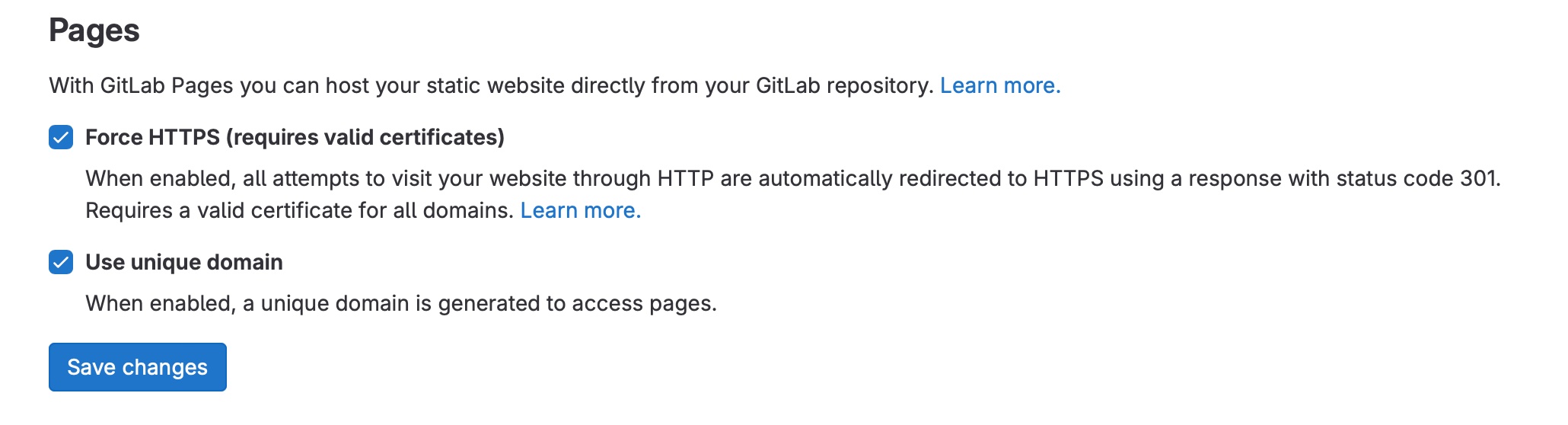
- Go to Deploy > Pages
- Check Use unique domain and save
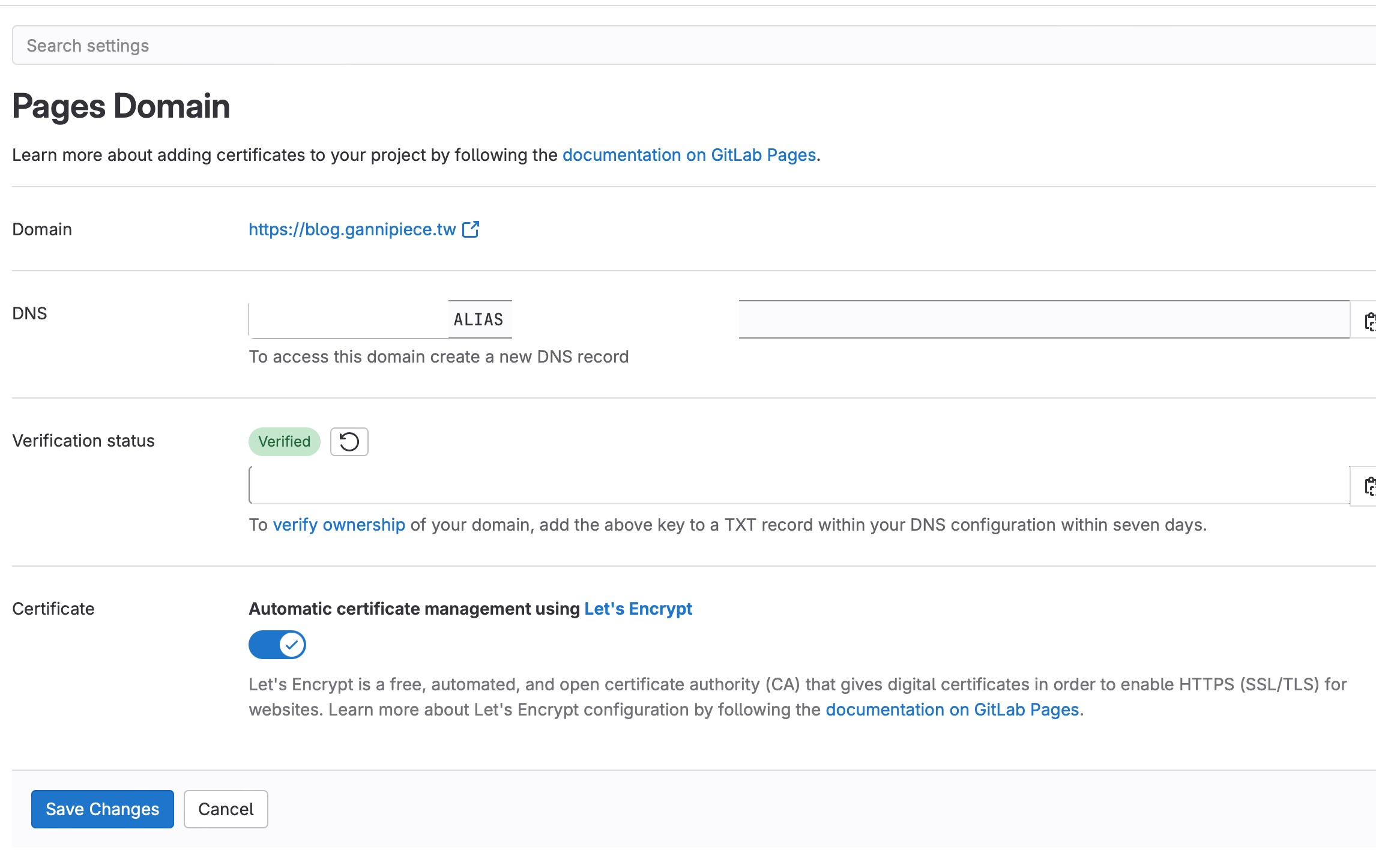
- Click New Domain and enter your Gandi domain
- Confirm the page info — before DNS verification, Verified should show Not verified
- Note the DNS and Verification status info — you’ll need these in the next step
- Check Use unique domain and save
Configure Gandi DNS
- Log into gandi.net and go to Domains > DNS Records
- Click Add record and create an
Atype record - Set the name to your domain (e.g.,
blog.gannipiece.tw) - Set the IPv4 address to 35.185.44.232 — this is the current (2023) IP for all GitLab Pages
- Go back and add another record of type
TXT - Use the same domain name
- Set the Text value to the full string after
TXTin the Verification status (not just the code portion) - Save and wait about 30 minutes for DNS propagation and verification
Conclusion
This article documents how to migrate from GitHub Pages to GitLab Pages and point a Gandi domain to the auto-deployed GitLab page. It also shows how to use GitLab CI/CD to schedule automatic Hugo deployments.
A few things worth noting: DNS configuration for GitLab Pages differs from GitHub Pages. With GitHub Pages, you typically set a CNAME record; with GitLab, you set an A record pointing to 35.185.44.232. Also, for the TXT verification record, you need to paste the entire string after TXT in the Verification status field — not just the code portion.