(the post is automatically translated by AI)
Background
I’ve been learning ROS, but I don’t have a robot at hand. My idea: use the iPad I already have as a ROS node and receive data on my Mac — sensor data like IMU, Camera, Battery, etc. — to understand how ROS nodes collect and publish data.
In this article, we’ll:
- Set up the MacBook as a ROS node (using Docker)
- Turn the iPad into a ROS node (using Conduit)
- Receive the iPad’s sensor data on the MacBook
Setting Up the MacBook as a ROS Node (Docker)
The ROS documentation mentions installing ROS2 natively on macOS, but in practice this runs into many deprecated packages and version dependency issues. After a few rounds of debugging with Claude Code, I decided to skip native installation — my goal at this stage was to see the data format ROS2 produces, not fight with the toolchain.
The Docker image approach is the simplest way to get started.
Create a directory ros2-ipad/ with a config/ subdirectory. Prepare three files:
ros2-ipad
|__ Dockerfile
|__ docker-compose.yml
|__ config/zenoh_router.json5
Dockerfile
FROM --platform=linux/arm64 ros:jazzy

RUN apt-get update && apt-get install -y \
    ros-jazzy-rmw-zenoh-cpp \
    && rm -rf /var/lib/apt/lists/*

RUN echo "/opt/ros/jazzy/opt/zenoh_cpp_vendor/lib" > /etc/ld.so.conf.d/zenoh.conf && ldconfig
- Uses the Jazzy release of ROS. If you’re on an Intel Mac, change
linux/arm64tolinux/amd64. - Installs the
ros-jazzy-rmw-zenoh-cpppackage. - Fixes the library path.
docker-compose.yml
services:
  zenoh_router:
    build: .
    container_name: zenoh_router
    ports:
      - "7447:7447/tcp"
      - "7447:7447/udp"
    stdin_open: true
    tty: true
    environment:
      - ROS_DOMAIN_ID=0
      - RMW_IMPLEMENTATION=rmw_zenoh_cpp
      - LD_LIBRARY_PATH=/opt/ros/jazzy/opt/zenoh_cpp_vendor/lib
      - ZENOH_ROUTER_CONFIG_URI=./config/zenoh_router.json5
    volumes:
      - ./config:/config:ro
    command: >
      bash -c "source /opt/ros/jazzy/setup.bash &&
               ros2 run rmw_zenoh_cpp rmw_zenohd"
| Field | Description |
|---|---|
build: . | Builds the image from the local Dockerfile |
container_name | Fixed container name zenoh_router |
ports | Maps host port 7447 to the container (TCP/UDP), allowing external devices like the iPad to connect |
stdin_open / tty | Keeps the terminal open for interactive use |
ROS_DOMAIN_ID=0 | ROS 2 domain ID; nodes must share the same domain to communicate |
RMW_IMPLEMENTATION | Specifies Zenoh as the ROS 2 middleware |
LD_LIBRARY_PATH | Ensures libzenohc.so is found |
ZENOH_ROUTER_CONFIG_URI | Points to the Zenoh router config file |
volumes | Mounts the local ./config directory into the container (read-only) |
command | Sources the ROS 2 setup and starts the Zenoh router |
config/zenoh_router.json5
{
  mode: "router",
  listen: {
    endpoints: [
      "tcp/0.0.0.0:7447"
    ],
  },
}
| Field | Value | Description |
|---|---|---|
mode | "router" | Starts in router mode, relaying messages between nodes |
listen.endpoints | "tcp/0.0.0.0:7447" | Listens on all network interfaces on port 7447 |
Since Docker doesn’t have a fixed IP, we use 0.0.0.0 to listen on all interfaces.
Run It
Inside the ros2-ipad/ directory, run:
docker compose build
docker compose up

Turning the iPad into a ROS Node (Conduit)
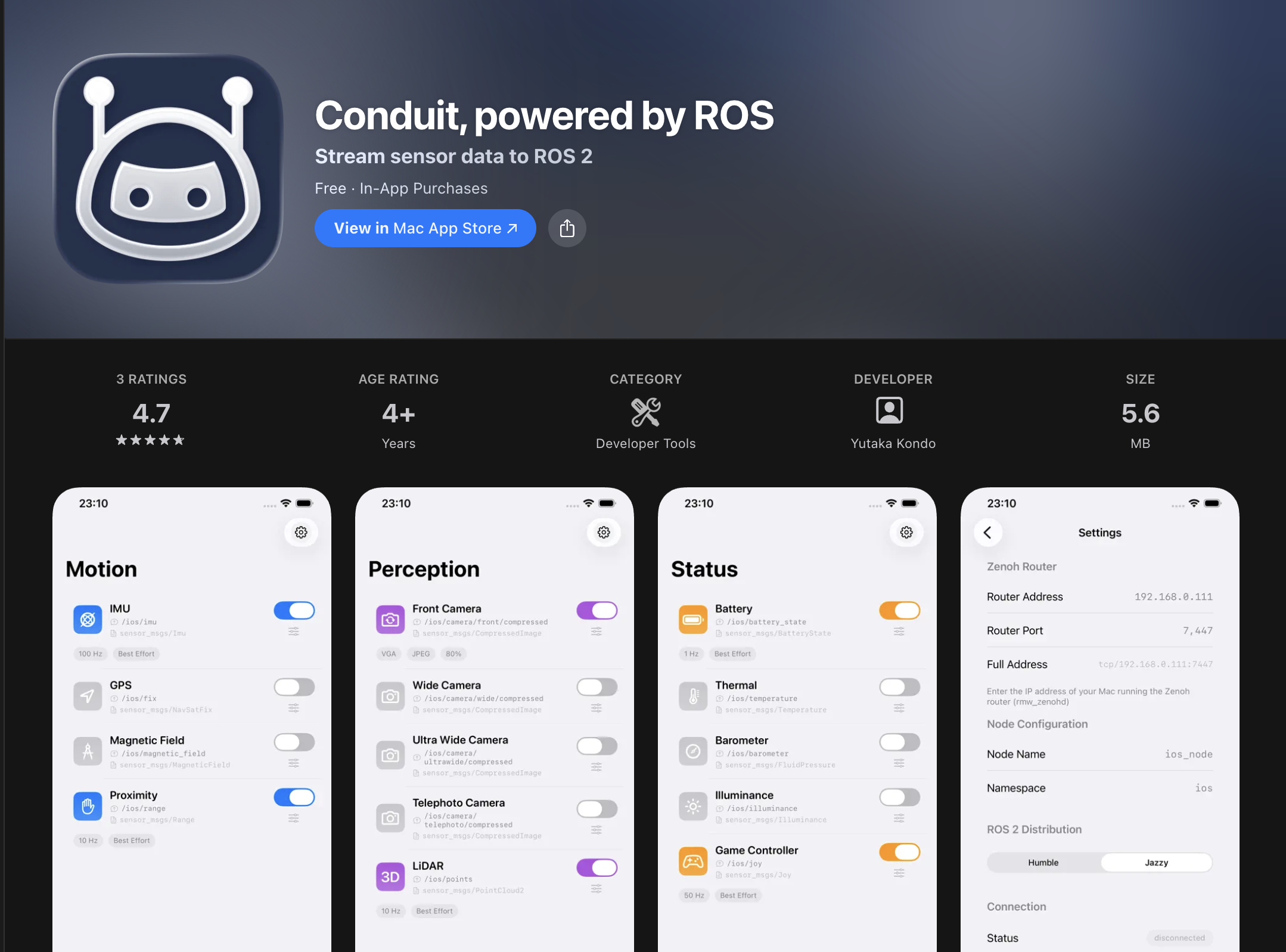
Search for and install Conduit, powered by ROS from the App Store.
Configure ROS Topics
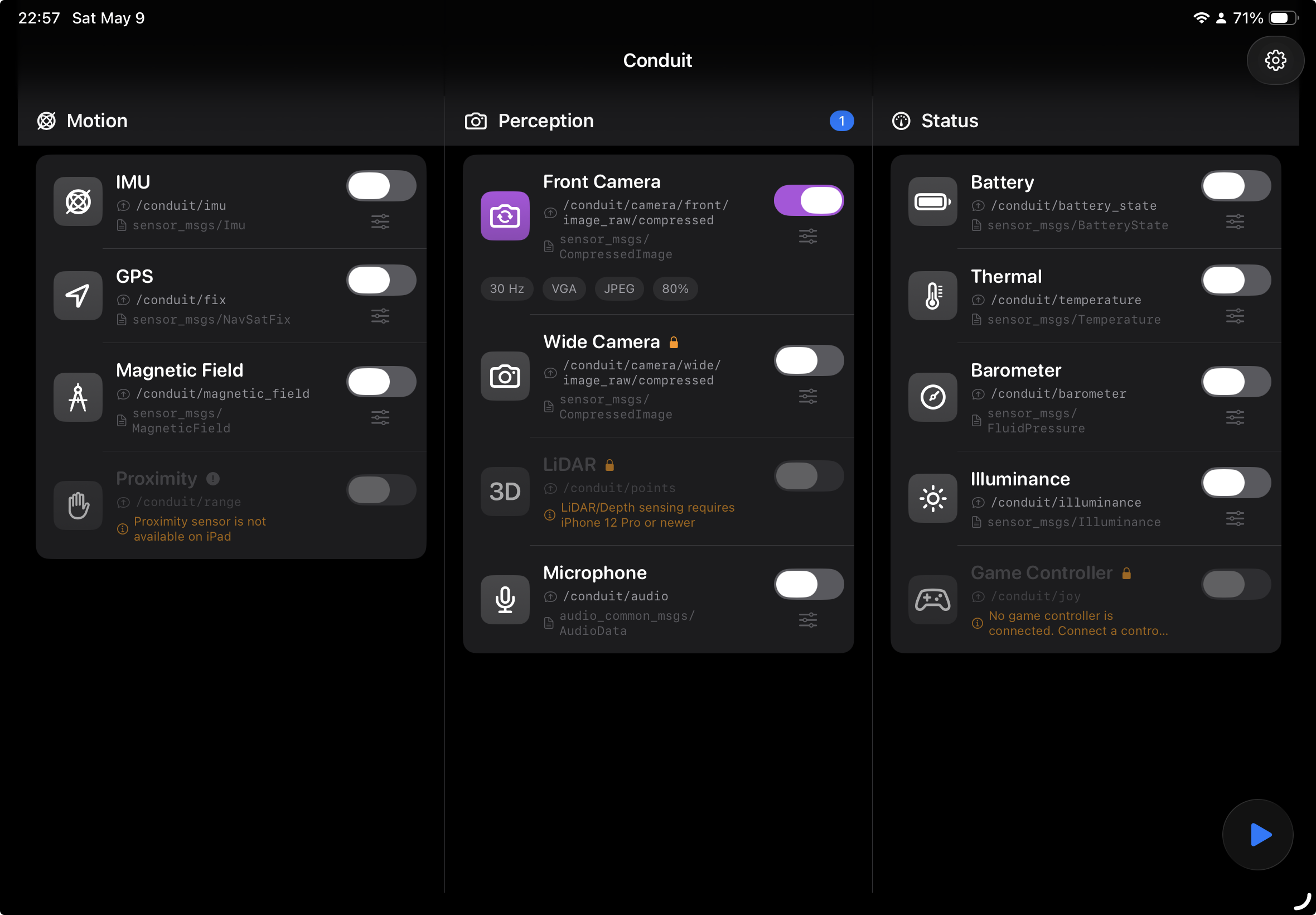
On the Conduit home screen, select the topics you want to publish — options include IMU, GPS, Camera, and Battery.
Set the IP Address
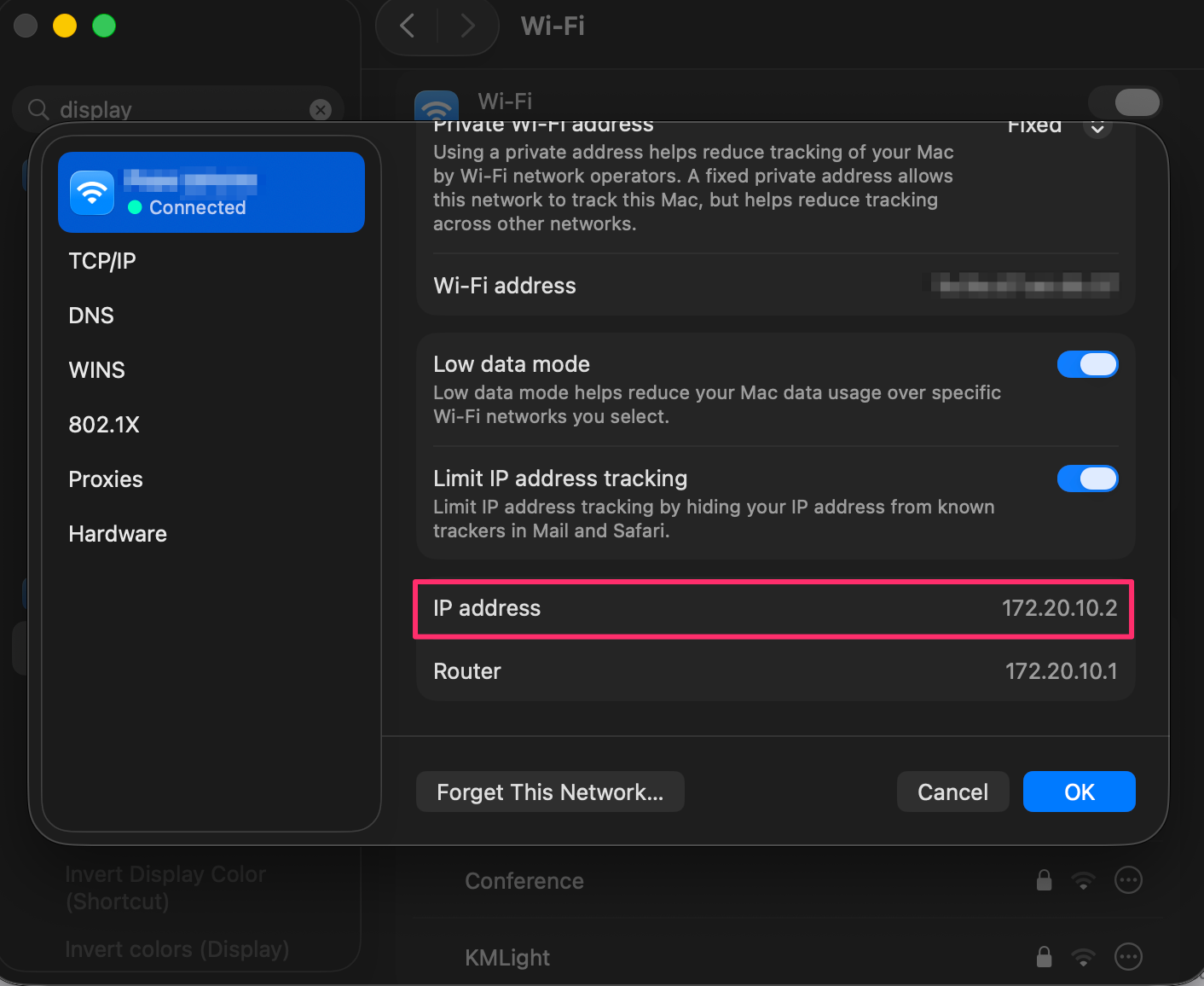
On your Mac, go to System Settings > Wi-Fi and find the MacBook’s current IP address on your Wi-Fi network.
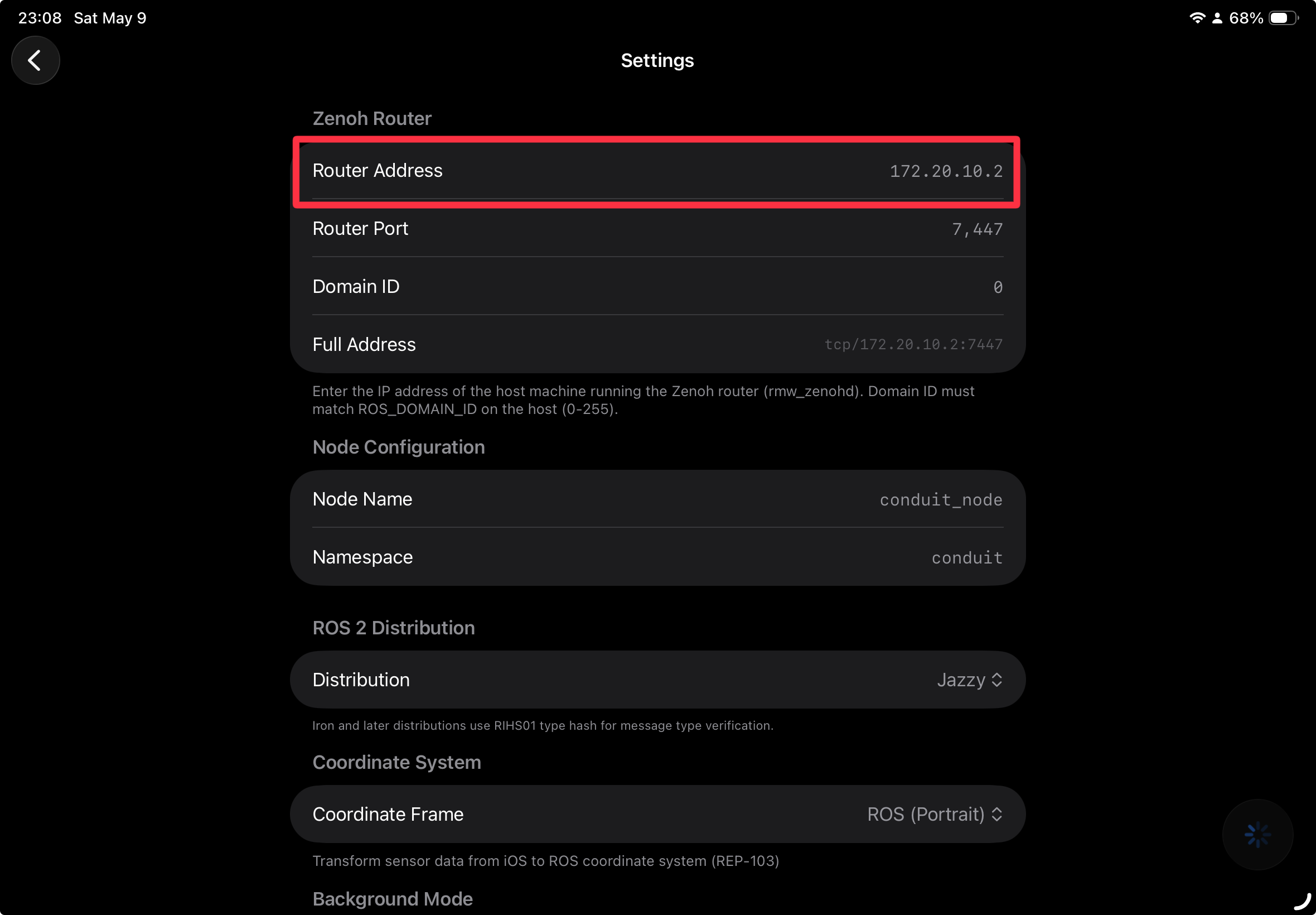
Back in Conduit on the iPad, tap the settings icon in the top-right. Set Zenoh Router > Router Address to the MacBook’s IP address.
Start Conduit
Tap the run button in the bottom-right of Conduit to start streaming.
Receiving iPad Sensor Data on the MacBook
Make sure the iPad and MacBook are on the same Wi-Fi network.
After starting Conduit on the iPad, go back to the MacBook.
First, check the running container ID with docker ps:

Enter the container with bash:
docker exec -it 2e76462241cb bash
Source the ROS 2 environment:
source /opt/ros/jazzy/setup.bash
export RMW_IMPLEMENTATION=rmw_zenoh_cpp
List available topics:
root@2e76462241cb:/# ros2 topic list

/conduit/camera/front/camera_info
/conduit/camera/front/image_raw/compressed
/parameter_events
/rosout
/tf_static
Echo a topic to view its data:
root@2e76462241cb:/# ros2 topic echo /conduit/camera/front/image_raw/compressed
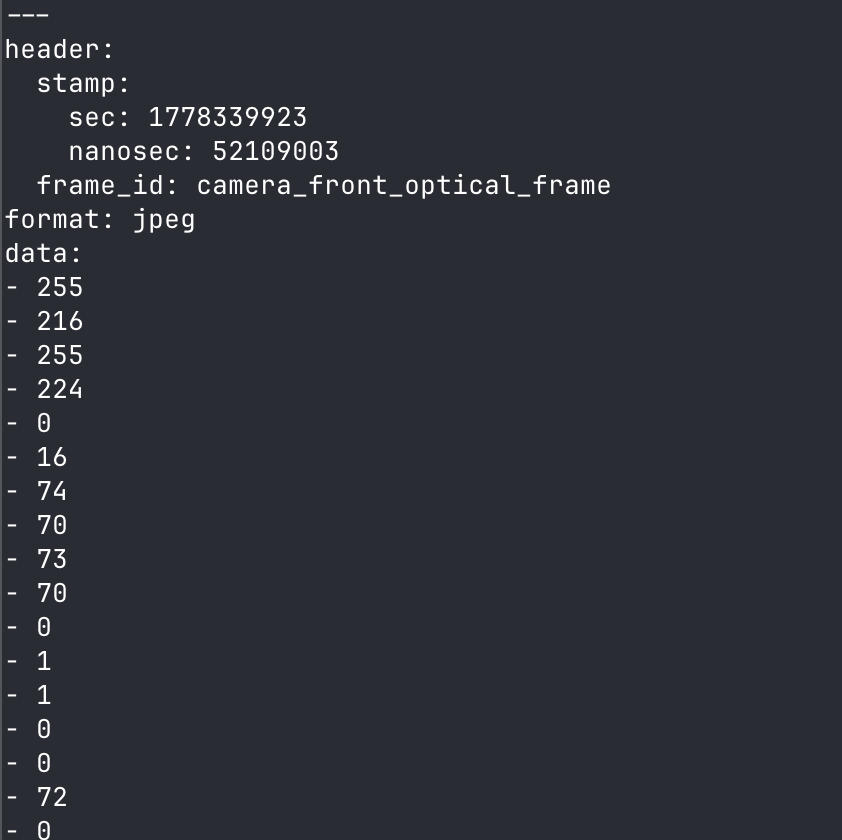
Camera data received successfully!
Conclusion
In this article, we documented how to use an iPad as a ROS2 sensor and receive its data on a Mac. The data flow looks like this:
iPad
↓
tcp/<MacBook IP>:7447
↓
Docker port mapping 7447 → 7447 (container)
↓
Zenoh listening on 0.0.0.0:7447
This was a great hands-on way to learn ROS2 commands and understand what ROS node sensor data looks like in practice.